
Spotify is a popular digital music-streaming platform that lets users listen to millions of songs, podcasts, and audio shows online. It works by connecting to Spotify’s cloud-based library, where all audio files are stored, and then streaming them directly to your device using an internet connection. Users can search for music, create playlists, follow artists, and discover new songs through personalized recommendations powered by algorithms. Spotify’s main purpose is to make music easily accessible anytime, anywhere—whether you’re using a phone, laptop, tablet, or smart speaker. It aims to give listeners a smooth, convenient, and personalized audio experience. I have personal experience with this app, and in this blog post, I will show you how to improve both the sound quality and the volume of your Spotify device.
Adjusting Playback Volume Level
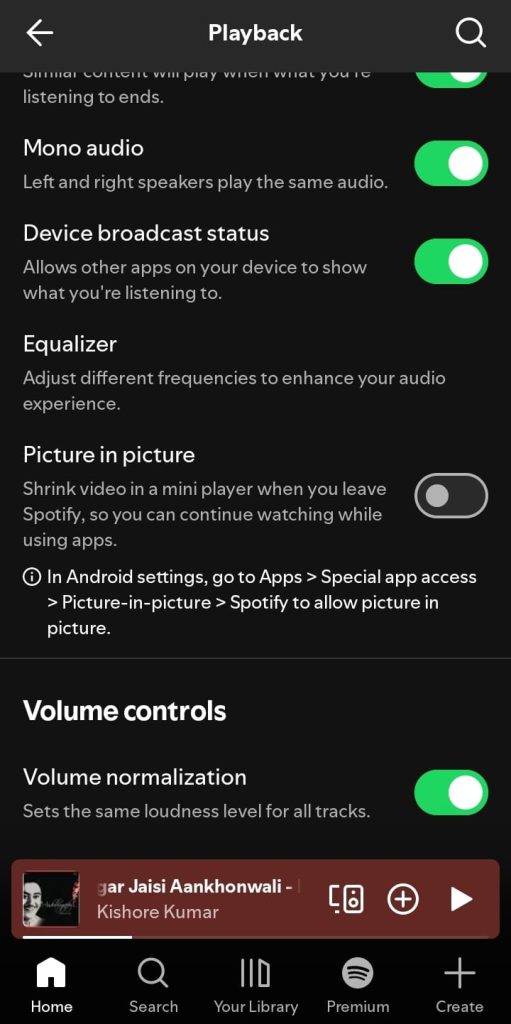
Open the Spotify app and tap the profile icon in the top-left corner. Select “Settings and Privacy”, then go to “Playback.” Scroll down until you find the Volume Control option. Tap the gear icon and slide the toggle to the right to set the same volume level for all tracks.
Spotify App > Profile Icon > Settings & Privacy > Playback > Volume Control > Gear Icon > Slide Right
Set Audio Quality
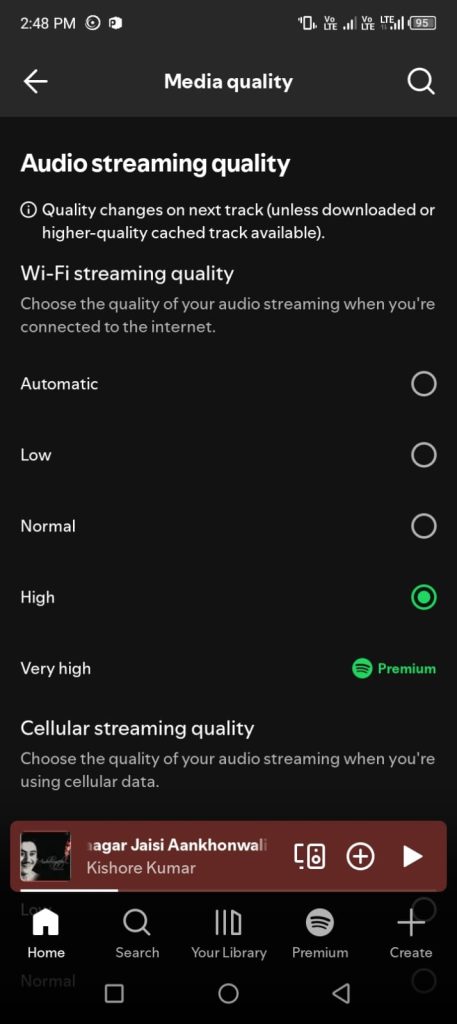
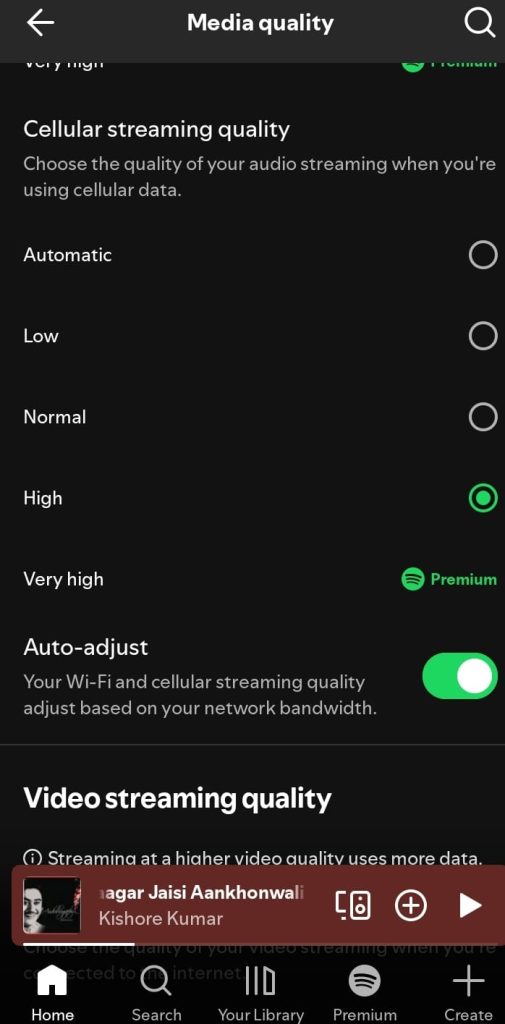
Open the Spotify app and tap the profile icon in the top-left corner. Select “Settings and Privacy”, then scroll down and tap “Media Quality.” Set the streaming quality to “High” for both Wi-Fi and cellular. If you are a Premium user, you can choose “Very High” quality for the best audio experience.
Spotify App > Profile Icon > Settings & Privacy > Media Quality > Audio Streaming Quality
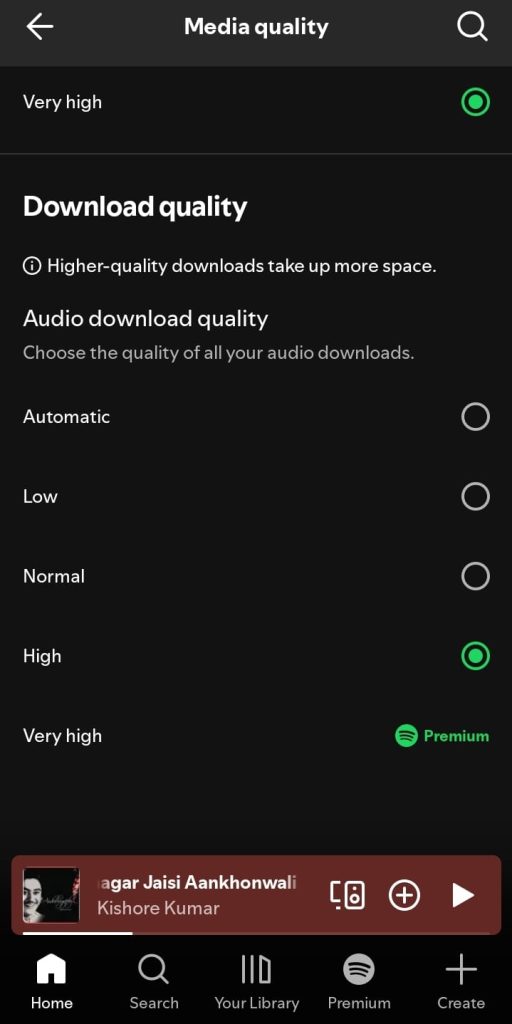
Download Quality
Open the Spotify app and tap the profile icon in the top-left corner. Select “Settings and Privacy,” then scroll down and tap “Media Quality.” Scroll further until you see “Download.” If you’re a Premium user, set it to “Very High,” and if you’re a free user, set it to “High.”
Spotify App > Profile Icon > Settings & Privacy > Media Quality > Download > High / Very High
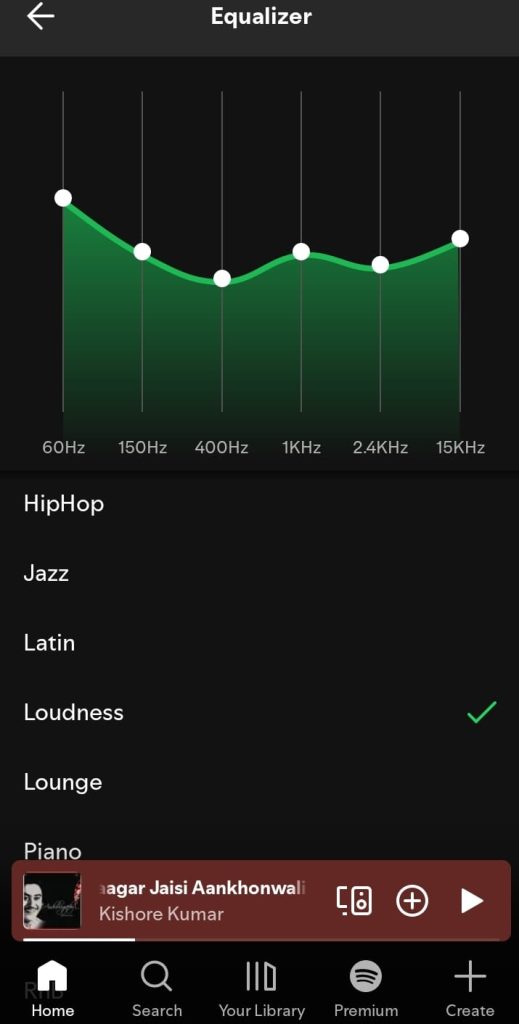
Equlizer setting
The Equalizer (EQ) is used to adjust sound frequencies so you can customize how your music sounds. Different headphones sound different, and the EQ helps you fine-tune the audio to match your device. You can adjust the frequency settings in the Spotify app to personalize and enhance the sound based on your preference.
Settings and Privacy → Playback → Scroll Down → Listening Controls → Equalizer
Clean your Speaker
Regularly cleaning your phone’s speaker holes helps stop stains from building up inside. Ignoring this for too long can lead to rigid dust that may interfere with your phone’s audio. If water accidentally enters your phone speakers, you can use our free web app by visiting and tapping the button. if have issues about Airpods, you can fix its sound Quality by Reading diffrent methods .