What to Do Immediately After iPhone Water Damage
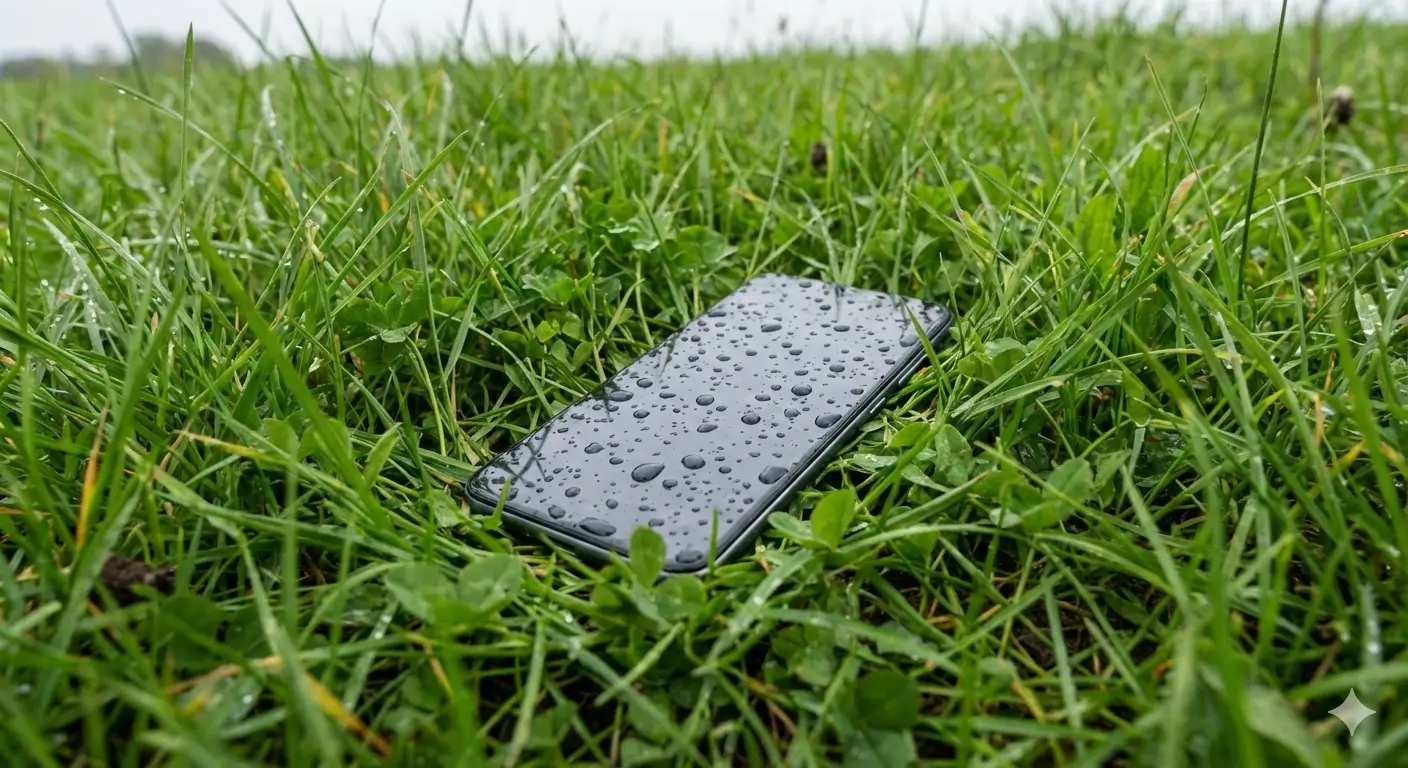
Dropped your phone in water? Take a breath. Most water‑damaged phones can be saved if you act fast, avoid common mistakes, and follow a simple, step‑by‑step plan. This guide shows you exactly what to do—and how myspeakerfixer.com can help you fix muffled sound after water exposure.
Immediate Actions
Step 1: Immediate Rescue Moves (First 60 Seconds)
The first minute decides whether your phone survives or slowly dies over the next few days.
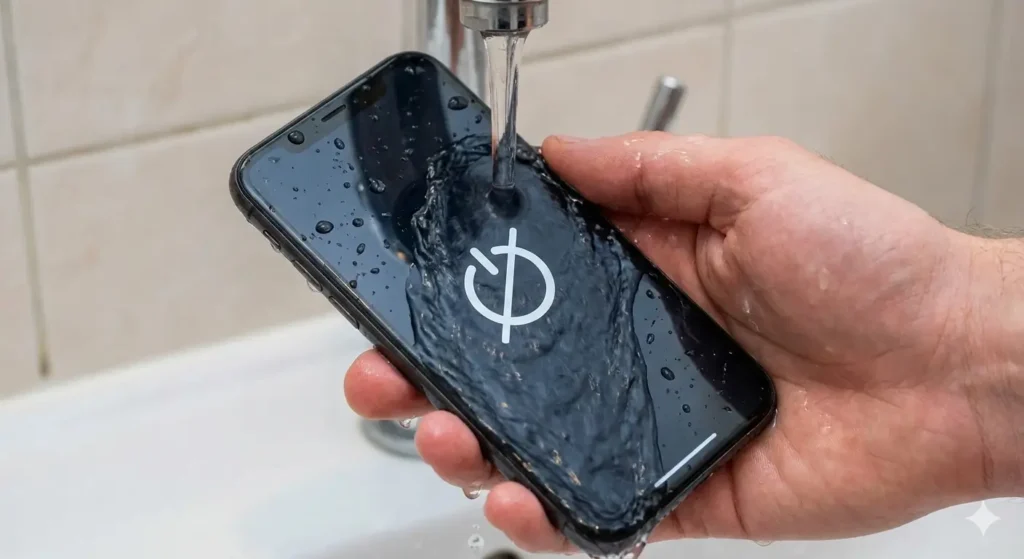
Quickly remove the phone from water—every extra second matters.
Power it off immediately; don’t “just check” if it still works.
Unplug chargers or cables and remove the case, SIM card, SD card, and any accessories that can trap moisture.
Hold the phone with the charging port and speaker area facing down so water can drain out instead of going deeper in.
No testing, no button pressing, no charging. Just shut it down and strip off anything that holds water
Step 2: Dry the Exterior (Cloth, Ports, and Crevices)
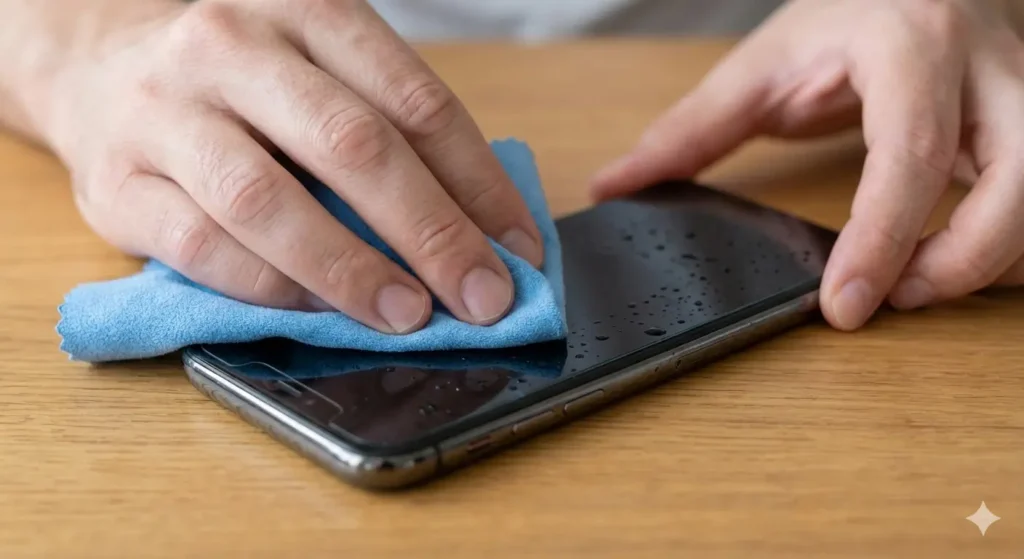
Now focus on what you can see: the outside.
• Use a soft, lint free cloth or microfiber towel to gently pat the phone dry.
• Pay extra attention to the charging port, speaker grill, headphone jack, and buttons—dab, don’t rub, so you don’t push water inside.
• Dry the case, SIM tray, and accessories separately before you ever put them back on.
Your only goal in this step: remove visible moisture without forcing water deeper into the device.
Step 3: Remove/dry Hidden Moisture using Absorbent Material (Silica Gel, Airflow, Gravity)
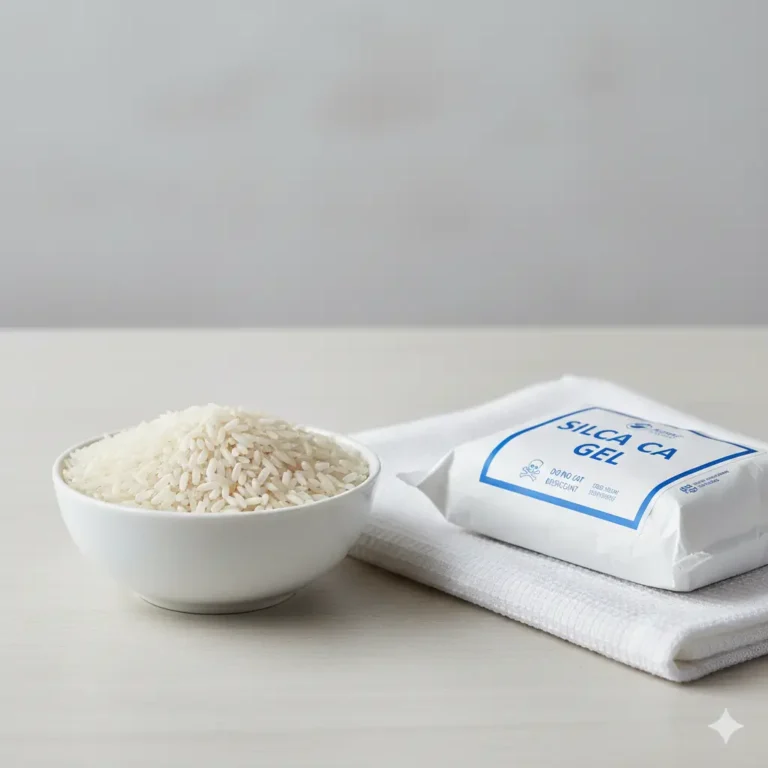
Once the outside looks dry, the real problem is the moisture you can’t see.
If you have silica gel or a drying bag (Damp Rid, desiccant), place the phone in a sealed container with them for 24–48 hours.
If silica isn’t available, place the phone in a dry room with gentle airflow from a fan, ports facing down, and let gravity help water drain.
Rice is a last‑choice backup: better than nothing, but slower and less effective than proper desiccants.
Be patient. The biggest mistakes happen when people rush and try to turn the phone on too early.
Step 4: Things You Must NOT Do (Big Phone Killers)
A lot of “phone hacks” online actually destroy devices.
Don’t use a hairdryer on high heat, oven, microwave, or heater—excess heat warps parts and melts adhesives.
Don’t shake the phone hard or blow into the ports; these just spreads water deeper.
Don’t plug it into a charger or keep turning it on “to see if it works” while it’s still damp.
Don’t stuff tissues, cotton, or sharp objects into the speaker or ports.
If a method feels aggressive or extreme, skip it. Water damage is bad, but heat and force can be worse.
Step 5: Check for Damage Before Powering On
Before you even think about pressing the power button, give your phone a quick “health inspection.”
Look closely around the charging port, SIM slot, headphone jack, and speaker grills for any signs of leftover moisture, corrosion, rust spots, or green/white residue.
Check the screen and back for fog, warping, or weird discoloration—these are clues that water may still be trapped inside.
Step 6: When Can You Turn It on and Test It?
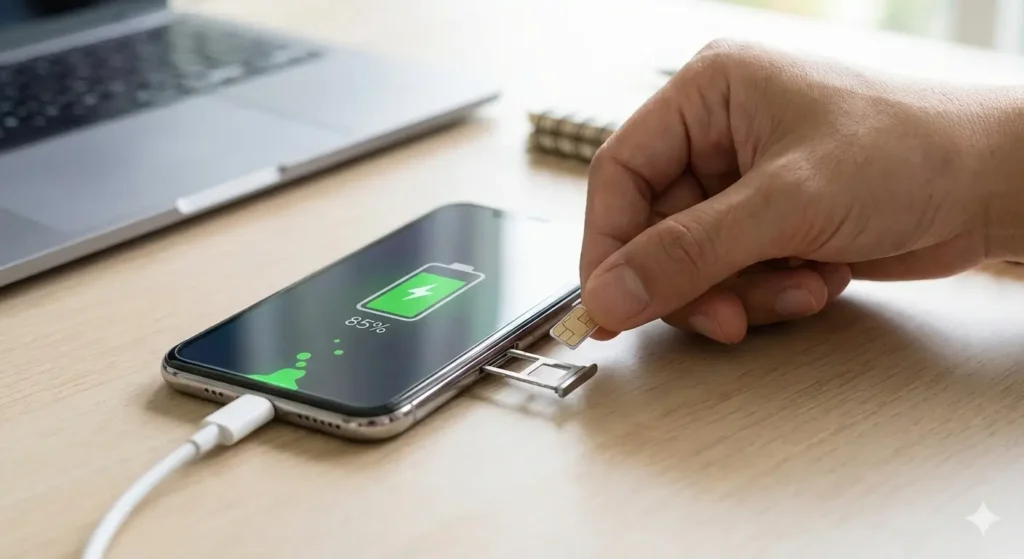
After at least 24–48 hours of drying (longer for full submersion or dirty/salty water), you can carefully test the phone.
Inspect it first
Look for fog under the screen, corrosion or discoloration near ports, or weird stains around seams and buttons.
Power it on once
Reinsert the SIM and battery (if removable) and turn it on. Don’t keep rebooting it repeatedly.
Run a quick health check
Test the touchscreen, buttons, camera, charging, Wi‑Fi, and Bluetooth. Watch for flickering screens, random restarts, or overheating.
If anything feels unstable, power it off again. That’s a sign there’s still moisture or damage inside.
Step 7: Professional Help (When DIY Isn’t Enough)
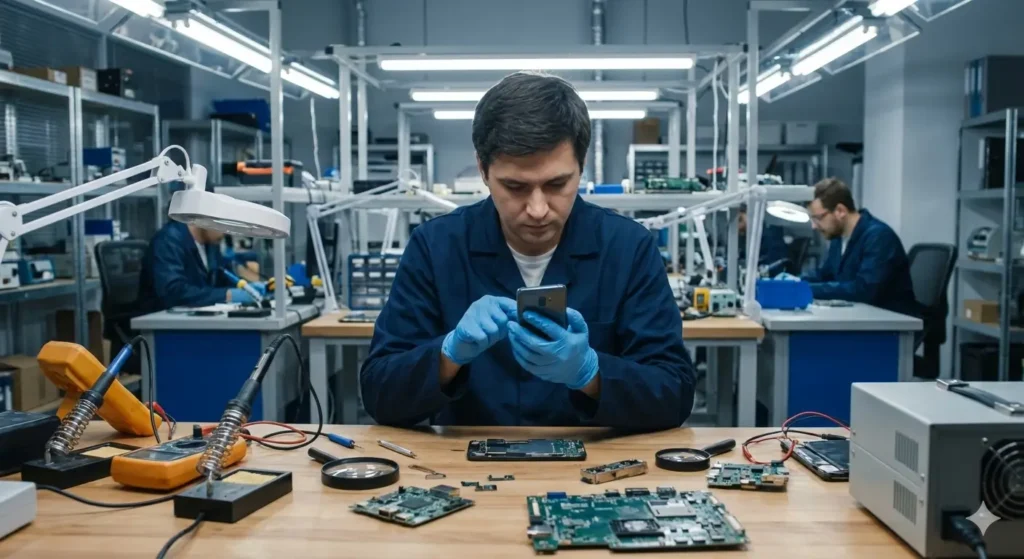
Sometimes, even after careful drying and using tools like myspeakerfixer.com, your phone still doesn’t feel right—and that’s your cue to call in a pro.
Get a technician involved if the phone won’t turn on, the screen flickers, the battery overheats, or important features like charging, camera, or speaker keep failing tests.
A trusted repair shop can safely open the device, clean internal corrosion, replace damaged parts, and in many cases recover data that would otherwise be lost.
If your phone is expensive, holds important work or personal files, or was fully submerged in dirty or salty water, professional inspection is usually cheaper than risking a total failure later.
Do iPhones and Androids Need Different Treatment?
The basic steps are similar for both, but there are some useful differences you can mention.
Many iPhones since iPhone 7 and flagship Android phones have IP67 or IP68 ratings, which help against temporary water exposure—but don’t make them bulletproof.
Some models show alerts like “Liquid detected in Lightning/USB‑C connector” and block charging until things are dry.
Budget Android phones often have no water resistance and no moisture warning at all.
Simple rule:
Treat all phones as vulnerable. Follow the same emergency steps.
If your phone shows a moisture warning, listen to it and don’t force charging.
Preventing the Next Water Disaster (And Keeping Your Speaker Healthy)
You can’t avoid every accident, but you can tilt the odds in your favor.
Use a good case and, if you’re around water a lot, a waterproof pouch.
Keep your phone away from sinks, pools, bathroom shelves, and drinks.
Check your model’s IP rating so you know how much it can realistically handle.
Back up your data regularly so a dead phone doesn’t mean lost memories.
Make My speaker fixer part of your regular routine whenever your phone gets splashed, sweats in your pocket at the gym, or sounds quieter than usual.
Think of it like this: physical protection reduces the chance of serious damage, and myspeakerfixer.com helps keep your speakers clear and loud whenever moisture sneaks in
Quick FAQ: Water‑Damaged Phone + Speaker Questions
iPhone Water Damage Repair – What Works
iPhone water damage repair works best when quick and correct steps are taken. The first and most important action is to power off the device immediately to avoid internal short circuits.
Water usually enters sensitive areas such as the speaker, charging port, and screen. Trapped water in the speaker often causes muffled or distorted sound, which can be safely removed using a sound-based water ejection method.
For charging port issues, allow the phone to dry completely before plugging in any cable. Screen problems like flickering or unresponsive touch may improve with early drying, helping prevent permanent damage and costly repairs.
Water Damaged iPhone Screen – What to Do
A water-damaged iPhone screen may show issues such as flickering, dark spots, lines, or an unresponsive touch display. If this happens, turn off the iPhone immediately to stop further internal damage.
Place the device in a dry, well-ventilated area and avoid pressing the screen or attempting to charge the phone. In some cases, removing moisture early can help the screen recover.
However, if the display problems continue after drying, the damage may be permanent and require professional repair. Acting quickly greatly improves the chances of saving the screen and preventing additional issues.