
your mobile phone relies heavily on a properly working speaker for daily tasks such as making calls, listening to music, watching videos, hearing notifications, and using apps. When speaker issues appear—whether the sound becomes muffled, distorted, unusually low, or completely silent—it can disorder your entire phone experience.
By following these steps, you can diagnose speaker problems accurately—without technical expertise—and decide whether a quick fix, a sound-based cleaning tool, or professional repair is needed.
Perform a Basic Sound Test to check speaker
The simplest way to test your phone speaker is by playing audio and listening carefully to its quality, volume, and consistency.
1. Play Audio from Different Sources
Testing multiple audio sources helps rule out app-specific problems and checks overall audio output strength.
2.Music & Streaming Apps
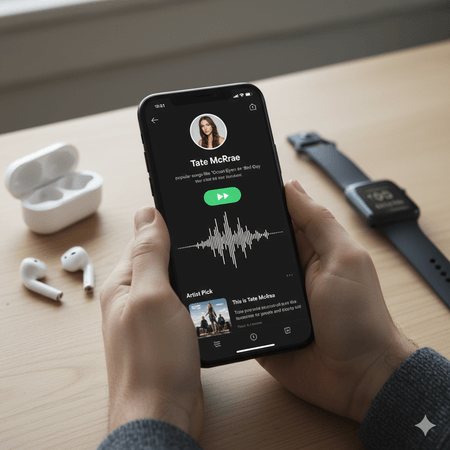
Play audio from YouTube, Spotify, Apple Music, or your phone’s default media player. you can adjust spotify sound louder
Use:
Bass-heavy tracks (to test low-frequency response)
Vocal–focused songs or podcasts (for mid-range clarity)
High-treble sounds like cymbals or acoustic music (for sharpness)
3.Videos & Podcasts
Videos combine dialogue, background noise, and effects. This makes it easier to detect muffled voices, unclear speech, or distorted mid-frequencies.
4.Ringtones, Notifications & Alarm Sounds
Go to Settings → Sounds / Sounds & Haptics and preview system ringtones, notifications, and alarms. These bypass media apps and directly test system audio drivers.
5.Voice Recordings
Record a short clip using the Voice app and play it back. This checks the full microphone-to-speaker audio path.
6. Speakerphone Call Test
Make a call and switch to speakerphone mode. This tests the main loudspeaker separately from theearpiece.
7. Test at Different Volume Levels
Gradually increase and decrease the volume using on-screen slider:
Low volume: Sound should remain audible and clear
High volume: Listen for crackling, buzzing, or rattling
Immediate distortion at higher levels often indicates speaker cone damage or blockage.
Focus on sound quality
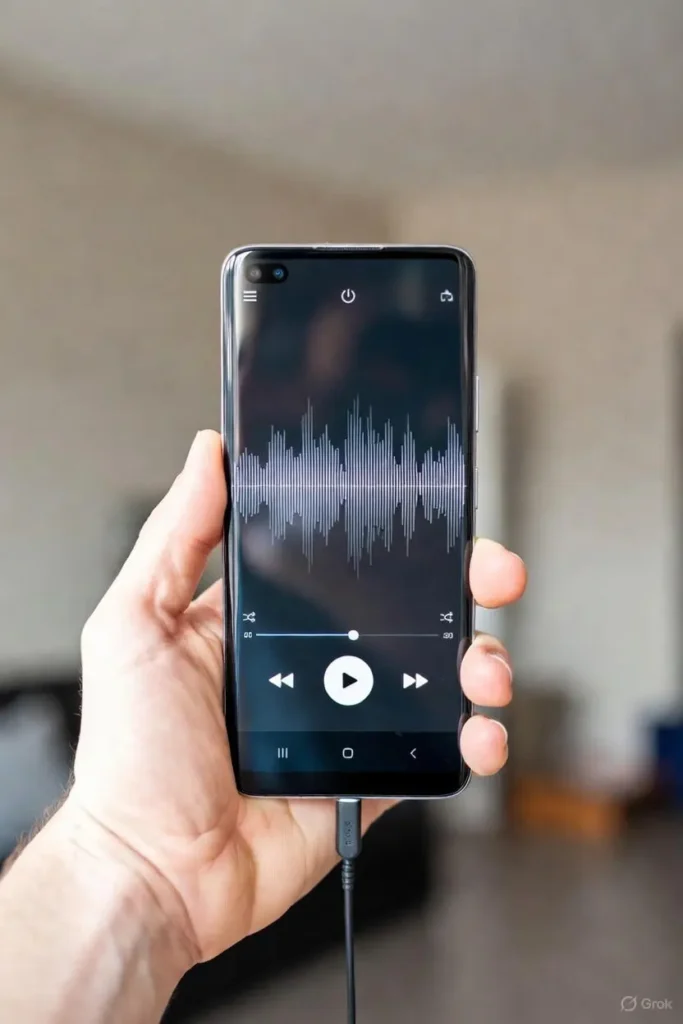
Play audio with deep beats to check if the speaker handles low frequencies without distortion. Pay attention to high-pitched sounds, such as vocals or cymbals, to detect any clarity issues.
watch a video with spoken words to make sure voices are clear and not muffled.
Test in different Environment
Play audio in:
A Noise-free room (to hear subtle distortion)
A loud environment (to judge real-world loudness)
If sound is inconsistent, muffled, or distorted across apps and settings, the speaker may have a authentic issue. If it works in some cases but not others, the problem is often software-related. if problem speaker-related then try diffrent methods to clean water or dust from speaker.
Use Your Phone’s Built-in Speaker Test (If Available)
Many smartphones include diagnostic tools that test hardware components like speakers.
For iPhone Users
Apple doesn’t offer a hidden diagnostic code, but you can test system audio by:
Playing ringtones or alerts from Settings → Sounds & Haptics
Adjusting the volume slider to test responsiveness
Recording and replaying audio using Voice Memos
Clear, adjustable sound usually means the speaker hardware is healthy.
For Samsung & Many Android Devices
Open the Phone app and dial *#0*#
Select Speaker to play a test tone
Listen for clear, clear output at normal volume
Some menus also test the earpiece and low-frequency response.
Note: Diagnostic codes vary by manufacturer and may not work on all devices. For Tablets : Although tablets do not have a dedicated “speaker test” feature like some phones, you can still perform a tablet speaker diagnostic using built-in sound settings, system tones, and media playback options. These methods work similarly on both phones and tablets.
Check for Physical Obstructions
Dust, lint, debris, moisture, or poorly designed phone cases often block the speaker grille and reduce sound quality.
What to Do
Inspect the speaker grille using a flashlight
Gently clean with a soft toothbrush or compressed air
Avoid sharp objects or blowing air forcefully with your mouth
Moisture & Water Damage
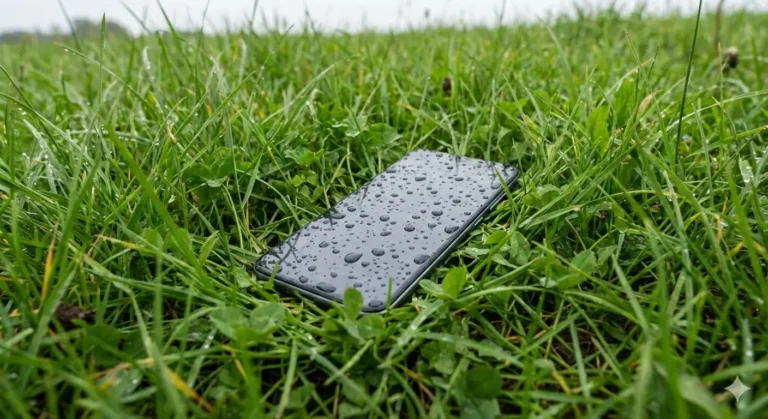
Even water-resistant phones can trap moisture in speaker chambers. If sound is muffled after water exposure:
Let the phone dry naturally in a ventilated area
Use tone-based vibration tools (like myspeakerfixer.com) to help expel trapped water
If sound improves after cleaning or vibration, the issue was physical—not permanent damage.
Additional Tips : Ensure Bluetooth is off (to avoid routing to headphones/car), Do Not Disturb is disabled, and no case is muffling the speaker. Call multiple contacts to rule out network or caller-side issues.
If the earpiece works but speakerphone doesn’t (or vice versa), it points to a specific hardware component needing repair. If both fail, try restarting or further tests. This call-based method, consistently recommended in global troubleshooting guides, provides an accurate, no-app-required diagnostic for daily speaker functionality
5. Use a Third-Party App for Advanced Testing
if basic tests aren’t conclusive, third-party apps provide frequency-based diagnostics.
What These Apps Do
Play low, mid, and high-frequency tones
Check frequency response consistency
Detect buzzing, rattling, or dead zones
Use vibration to loosen dust or water
Recommended Apps
Android: Speaker Tester, SoundAbout
iOS: Sonic, Sound Analyzer apps
Avoid max volume during tests to prevent further damage.
Restart and Update Your Phone
Many speaker issues are caused by temporary Software bug or audio driver issues.
Steps
Restart your phone to refresh system processes
Install the latest software updates (Android or iOS)
Test the speaker immediately after updating
Advanced Tip: Safe Mode (Android)
Booting into Safe Mode disables third-party apps.
If the speaker works in Safe Mode, an app is likely Interrupting with system audio.
Check for Bluetooth, Headphone & Accessibility Issues
Sometimes sound is working—but not playing through the speaker.
Fault finding Checklist
Turn off Bluetooth and disconnect paired devices
Look for a stuck headphone mode icon
Plug and unplug wired headphones a few times
Clean the headphone jack if present
Accessibility Audio Settings
Check:
Mono audio
Left/right sound balance
Hearing enhancement options
Incorrect settings can reduce volume or redirect audio output.
Hardware vs Software: Quick Diagnosis Guide
| Symptom | Likely Cause | Type |
| No sound at all | Audio routing / driver | software |
| Muffled sound | Dust or water | Hardware |
| Crackling at high volume | Speaker cone damage | Hardware |
| Calls OK, media bad | Loudspeaker issue | Hardware |
| Improves after restart | Temporary bug | software |
Factory Reset as a Final option
If all previous troubleshooting steps fail, a factory reset (also called hard reset or master reset) can resolve deep-rooted software bug causing speaker issues, such as corrupted audio drivers or persistent bugs from updates.
Always Backup First : A factory reset deletes all apps, photos, messages, contacts, and settings. Back up to Google Drive (Android), iCloud (iPhone), or a computer to avoid permanent data loss. Enable automatic backups in settings beforehand.
For Android: Go to Settings > System > Reset options > Erase all data (factory reset). Enter your PIN/pattern if prompted, then confirm. The phone will restart and wipe everything—setup will begin like a new device.
For iPhone: Go to Settings > General > Transfer or Reset iPhone > Erase All Content and Settings. Enter your passcode/Apple ID if required, then confirm. The device will restart and show the setup screen.
After resetting, test the speaker immediately (before restoring apps) to confirm if the issue was software-related. If the speaker problem started after water exposure, follow this step-by-step guide to fix a water-damaged iPhone before restoring your data.If the problem returns after restoring data, a specific app or file may be the culprit. If no improvement, it’s likely a hardware fault—visit an authorized service center
When to Seek Professional Repair
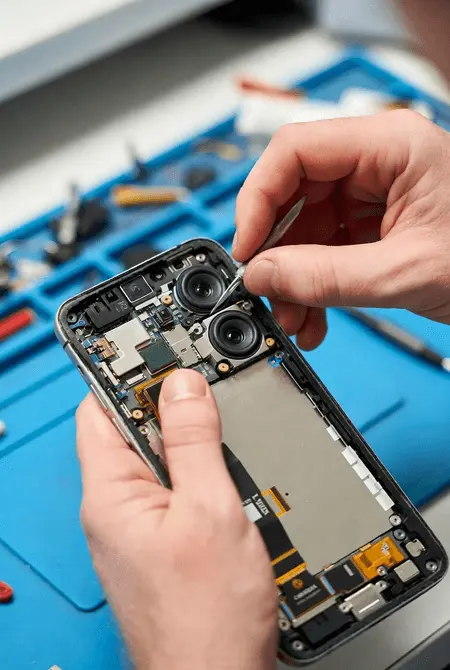
While many speaker problems can be fixed with basic troubleshooting like cleaning, restarting, or software updates, some issues indicate hardware damage or deeper faults that require expert intervention.
No Improvement After All Issue diagnosis: If the speaker remains silent, distorted, or low-volume despite cleaning grills, restarting, updating software, booting in Safe Mode, and factory reset, it’s likely a hardware fault (e.g., blown speaker coil, loose connections, or damaged diaphragm). If your speaker works but Spotify audio is low, learn how to make Spotify sound louder on any device.
Visible Physical Damage: Cracks, dents, deformities in the speaker grill/mesh, or signs of impact (e.g., after a drop) often mean internal components are compromised. Water exposure indicators (pink/red in SIM tray) or corrosion also signal pro repair.
Persistent Distortion or Crackling — Rattling, buzzing, or uneven sound (especially at higher volumes) that doesn’t resolve points to a torn diaphragm, loose wiring, or overheating damage.
Water Damage Complications — If drying methods (silica gel, tone ejection) fail and muffled sound persists, corrosion may have spread to circuits, microphone, or ports—requiring specialized cleaning
Warranty Considerations — If under warranty, visit an authorized center (Apple Store, Samsung Care, etc.) to avoid voiding coverage. For out-of-warranty, choose reputable shops with genuine parts.
Professional repairs often include diagnostics, part replacement, and warranties. Costs vary by model/brand but are usually reasonable compared to a new phone. Acting quickly prevents further damage (e.g., spreading corrosion).
Preventive Measures and Maintenance Tips
Clean speaker grilles every few weeks
Avoid Lengthy max-volume usage
Protect from water and humidity
Use quality cases with proper Gaps
Perform occasional speaker health checks
Conclusion
The easiest way to avoid speaker problems altogether is to make regular maintenance a habit. If you visit MySpeakerFixer.com once a week or every two weeks and use its tone-based cleaner tool, it will automatically remove dust and water buildup. This keeps your phone’s speaker clean, maintains full volume, and ensures it never goes silent. With just a little weekly care, you can keep your speaker sounding like new—safe, loud, and always ready!